
Frequently Asked Questions
Quick answers about plans, devices, drawing, list mode, exporting, and image editing.
Can’t find your question below? Use the form at the bottom to send it our way.
Can I use Penjo as a notebook or for undated entries?
Yes. Penjo’s “List Mode” turns any journal into a notebook-style experience: navigation skips empty days, so you see one continuous flow of entries instead of calendar gaps. The dates still exist as a chronological index, but they stay out of your way. See “How does List Mode work and how do I enable it?” below for setup.
Can I use Penjo without Apple Pencil on my iPad?
Sure, all functionality is available without Apple Pencil too. When Apple Pencil is unavailable and “Draw with Finger” is enabled on the Tool Picker, all tap actions are performed with a two-finger tap (e.g. two-finger tap to insert text, an image, a shape or a map card, or to select and move items) while single-finger actions are used to draw. If “Draw with Finger” is disabled, you cannot draw but can still add or edit boxes (text, image, shape and map card).
Why can’t I add drawings in the Mac app?
Drawing on Mac is on the roadmap. Meanwhile you can use the rectangular selection tool to move, copy or delete drawings.
What do 14 day sheets mean for the free plan?
On the free plan, you can have up to 14 non-empty day sheets. In other words, you can have items on 14 different days. Once you reach the limit, you will be asked to switch to a paid plan. If you delete the contents of one of those days, that day sheet frees up and you can use another.
I am on the free plan. I keep getting a purchase dialog on a day sheet after I fill the fifth page. How can I prevent that?
Update Penjo to version 3.7.8 or later. The page limit is gone: the free plan now allows unlimited pages per day. On older versions the free plan allowed up to 5 pages per day, and the dialog appeared once any item (drawing, text, or image) reached the last 20% of the fifth page.
Do I lose my data if I cancel my subscription?
No. Your data stays on your device. Paid features may become unavailable until you renew, but renewing restores access to everything you had.
Is Family Sharing available?
Family Sharing is available on the monthly subscription plan. The yearly and lifetime plans do not support Family Sharing.
Does the monthly subscription automatically cancel if I choose the lifetime option?
No. You need to cancel your subscription after you purchase the Penjo Unlimited Lifetime option.
Are there video tutorials?
Yes. Three walkthroughs by KUNYOTSU Studio, an independent Japanese YouTube channel, are embedded at the bottom of this page: getting started with a handwritten diary, Penjo compared with Apple’s Journal app, and using Penjo as a planner on iPad mini. They are in Japanese. YouTube can show auto-generated captions and translate them: tap the gear icon in the player, choose Subtitles/CC, then Auto-translate and your language.
How does line straightening work?
Just after drawing a rough line, place a small crossing strike around the center of the line and watch Penjo straighten it. Lines also snap to 0° and 90°. You can zoom in to make it work for short lines too.

How can I convert handwritten notes to text?
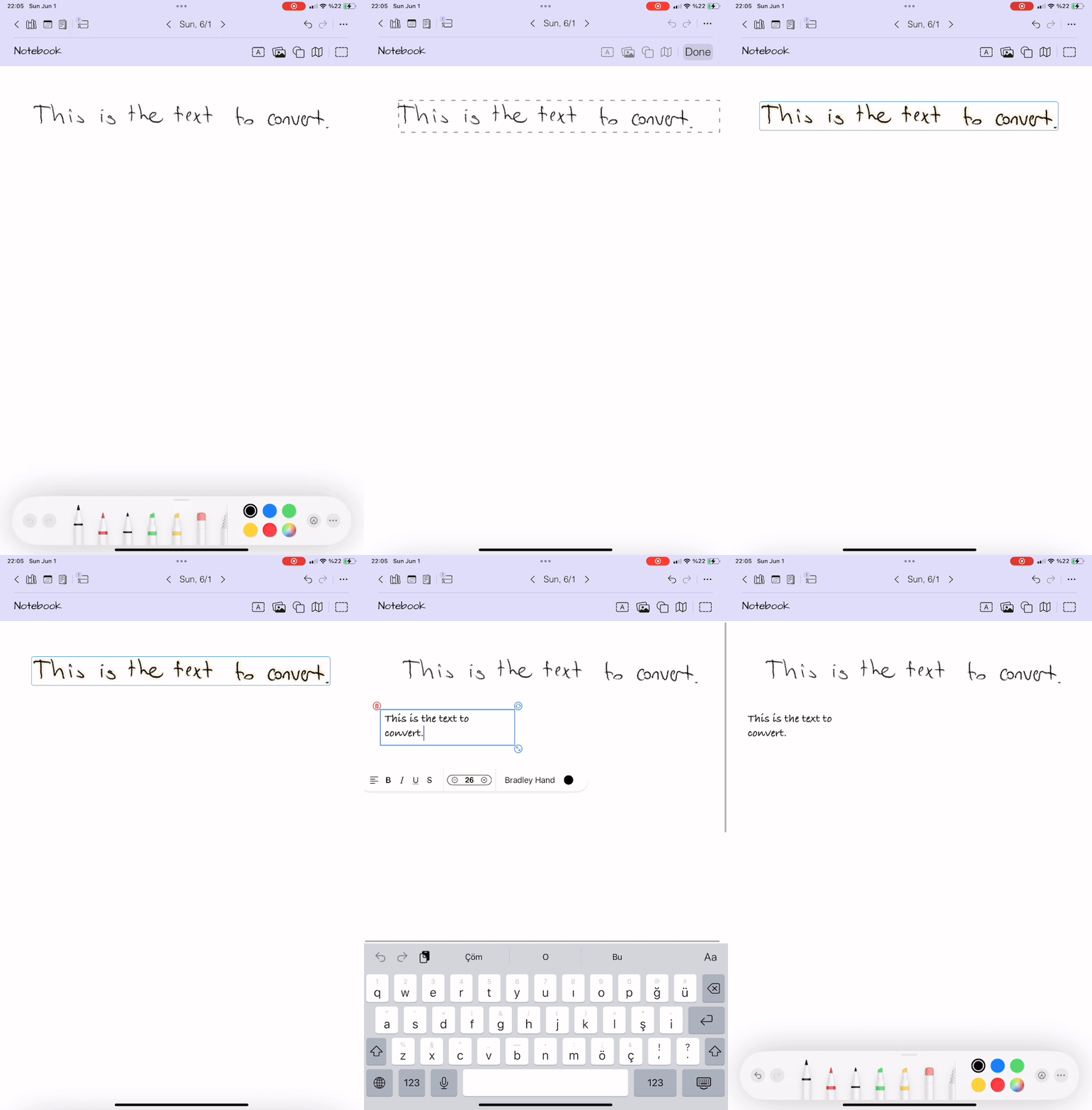
You can convert handwritten notes to text by selecting them and using the “Copy as Text” feature. Here’s how:
- Tap the rectangular selection tool (the dashed-rectangle icon).
- Draw a rectangle around the handwritten note with your finger to select it.
- Tap “Done” to finalize your selection.
- Tap the selected note to open the context menu.
- Choose “Copy as Text”. You can now paste the converted text into Penjo or any other app.
How can I crop an image into a shape?
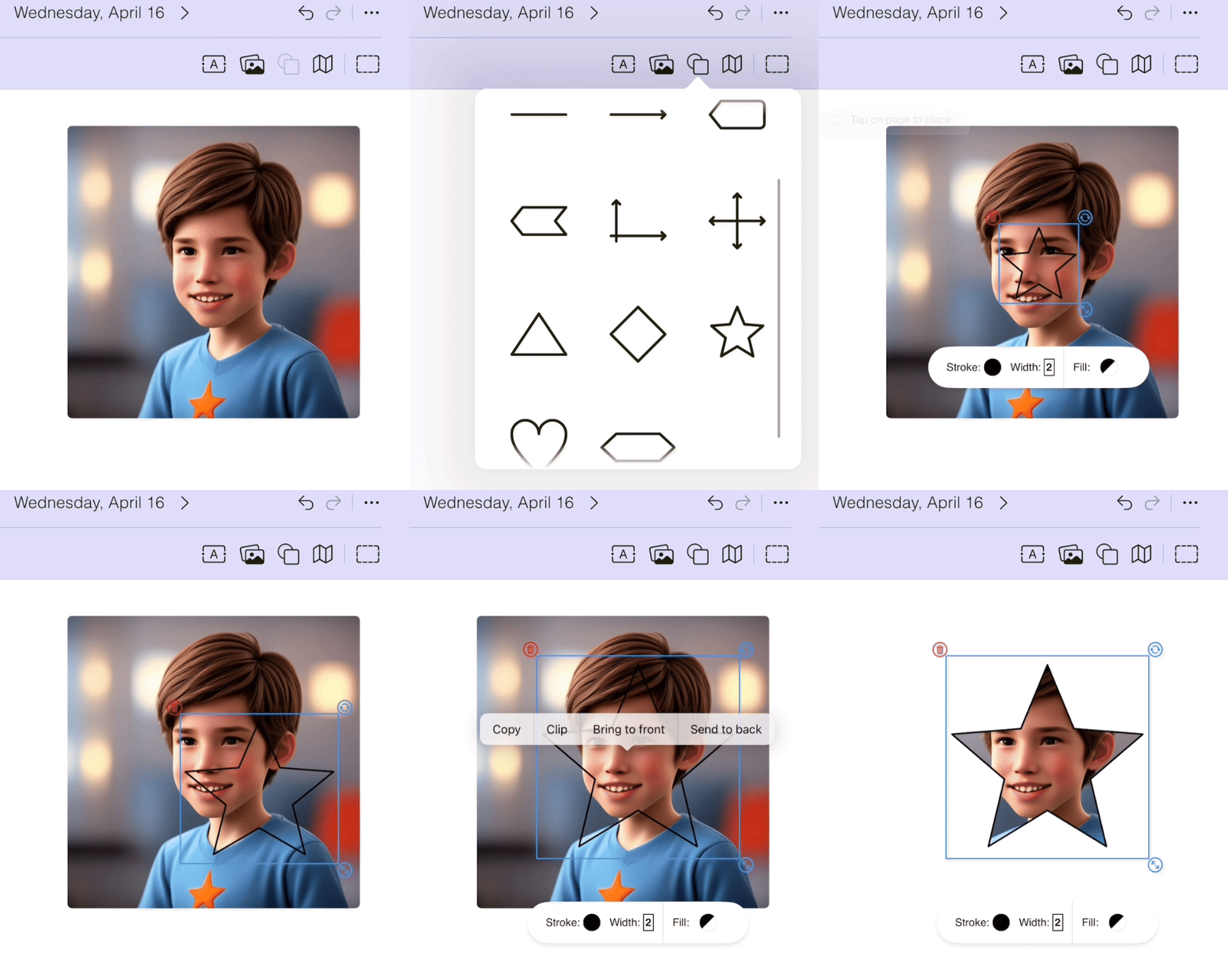
You can clip an image to any shape using Penjo’s shape tool. Here’s how:
- Tap the Add Shape button and pick a shape from the shape selector.
- Tap the page to insert it.
- Move the shape over the image, then resize or rotate it as needed.
- Tap the shape to open its context menu.
- Choose “Clip”. The image is cropped to match the shape.
After clipping, the shape stays in place on top of the image, so move it aside or delete it to reveal the result.
If the shape slips behind the image while you’re moving it, tap the shape to open its context menu and choose “Bring to Front”.
How does List Mode work and how do I enable it?
List Mode gives you a notebook feel inside a dated journal. Here’s how it behaves:
- Continuous Flow: Your journal opens directly to the list of entries rather than a specific calendar date.
- Navigation: Navigation buttons and edge swipes automatically skip empty days and take you to the next non-empty entry.
- Ordering Index: The dates act as a chronological index so you can focus on content without seeing gaps between entries.
You can set List Mode in any of three places:
- When creating a journal: enable “List Mode” in the Add Journal dialog.
- For an existing journal: open the journal’s Customize settings and toggle “List Mode”.
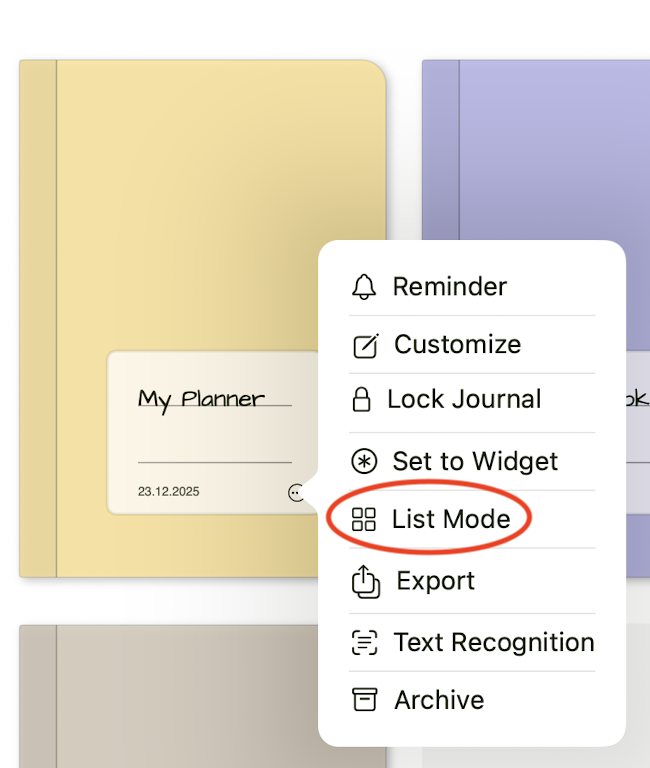
- On the fly: tap the Settings icon (three dots) on the journal cover and select “List Mode” (or “Day Mode” to revert).
Pro tip: to further categorize your notebook entries, use Color Bookmarks. You can then use the List View filter (the page icon in the top-left corner of Day View) to view only notes matching a specific category or topic.
How does the system decide to add or remove a page on a day sheet?
Penjo checks whether there is any item in the bottom 40% of the page. If so, it adds a new page. Similarly, if no item is left, it removes the page automatically.
What do “Shift Canvas” or “Collapse Space” do?
Shift Canvas is an important feature of Penjo to keep your day sheets clean and tidy. When you select “Shift Canvas” a shifter bar appears. Drag it up or down to create or remove space. This way you can insert items in between, or remove the space left behind when you delete an item.
Collapse Space is particularly useful if you delete some item (say, a completed to-do item). You can use this option to remove the void after moving or deleting an item.
How can I select drawings?
The selection tool works for images, shapes, text boxes, calendar event boxes, and drawings. You can also use the lasso select tool in the Pencil Tool Picker to select a drawing. After selecting a drawing using the rectangular selection tool, press the “Done” button. Once selected, tapping on the selection area will display options. You can also drag the selection to move to another location on the same day sheet.
How can I create or edit a custom tool picker?
Customization of the tool picker is available on iOS/iPadOS 18 and up. You can switch between default and favorite tool pickers from the accessory item button (the pen-in-a-circle icon).
When in the default tool picker, you can select “Add tool” to add the selected tool to the favorite tool picker. The new tool is placed before the eraser tool and the picker is switched to the favorite one.
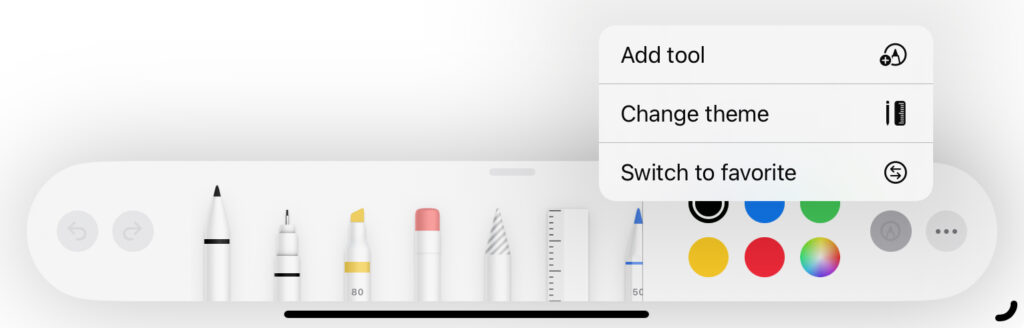
When in the favorite tool picker, you can move the selected tool left or right, remove it, or duplicate it to give it different color, width, or opacity settings. Your settings are automatically saved. You can also change the theme to dark or light using “Change Theme”.
How do I choose which journal a widget shows?
Starting with v3.7.6, every widget is configurable:
- Touch and hold the widget on your Home Screen (right-click on a Mac).
- Choose “Edit Widget”.
- Tap “Journal” and pick the journal you want, or keep “Automatic (Most Recent)” to follow the journal you opened last.
You can add multiple widgets, each showing a different journal: for example your work journal and your personal diary side by side. The old “Set to Widget” option in the journal menu is gone; the journal choice now lives in the widget itself. Widgets are available on iPhone, iPad, and Mac.
Why did my widget stop updating after the v3.7.6 update?
In v3.7.6 the widgets were redesigned: every widget is now configurable, so the old “Most Recent” widgets were retired. If one of those was on your Home Screen, it froze at the last thing it showed. Replacing it takes a few seconds:
- Touch and hold the frozen widget and choose “Remove Widget”.
- Touch and hold an empty area of the Home Screen, tap the + button, and search for Penjo.
- Add the widget you want: Journal, Journal Shortcuts, Yesterday–Today–Tomorrow, or Month Canvas.
New widgets start on “Automatic (Most Recent)”, which follows the journal you opened last, the same behavior the old Most Recent widgets had. To pin a widget to one journal instead, see “How do I choose which journal a widget shows?” above.
All other widgets keep working in place after the update; they start on Automatic until you pick a journal.
How can I copy/move day sheets to other journals?
You can use the copy/move menu in a sheet’s settings, located in the top-right corner of the screen (the icon with three dots in a circle).
In addition, with the copy below/above option that appears when you tap on an empty part of a sheet, you can copy the part above or below that point. Then, in another day sheet or journal you can tap “Paste” to paste into that sheet. If you tap on the top part of the sheet and select “Copy Below” it will copy the whole sheet.
How can I export a whole journal or a date range to PDF?
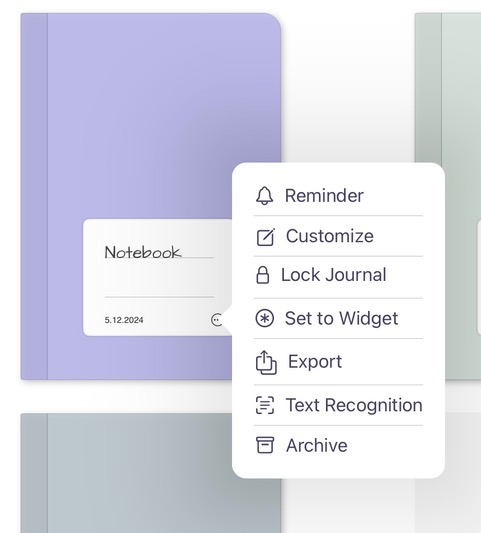
- Tap the journal settings on the journal card in journal List View (the three-dots icon on the journal card).
- Tap “Export”.
- Select a date range or enable “Export Whole Journal”. Enable export options as you wish and tap “Export as PDF”.
- Similar to exporting a single day, a share screen appears when processing completes.
How can I delete a journal?
Deleting a journal is a two-step process to prevent accidental removal of journals. To delete a journal:
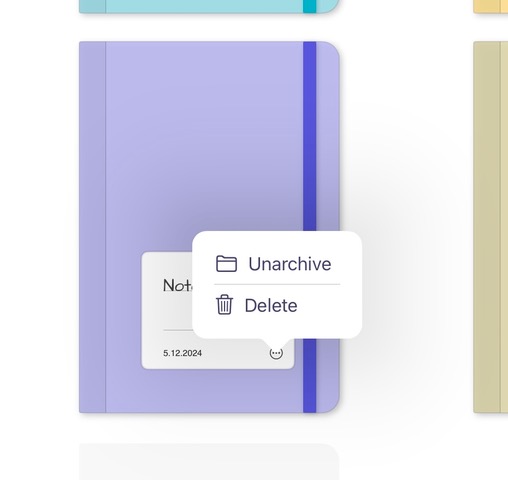
- Tap on the journal settings (the three-dots-in-a-circle icon on the journal card in the journal List View).
- Choose “Archive”. This will archive the journal: it will be invisible but not deleted.
- Go to main settings (the gear icon on the top-right edge) and enable “Show Archived Journals”.
- Find your journal and tap on the journal settings again.
- Choose “Delete”. Confirm the dialog and the journal is deleted.
I cannot select text, image, shape or map card. It says tap but I cannot tap. What is the reason?
It occurs when working on iPad and “Draw with Finger” is enabled on the Pencil Tool Picker. The app tries to draw instead of tapping. When “Draw with Finger” is enabled, all tap actions can be performed using a two-finger tap.
In addition, we recommend disabling “Draw with Finger” if you are using Apple Pencil. This way, you can use tap with your finger.
Video guides
Three walkthroughs by KUNYOTSU Studio, an independent Japanese YouTube channel. The videos are in Japanese. YouTube can show auto-generated captions and translate them: tap the gear icon in the player, choose Subtitles/CC, then Auto-translate and your language.
-
Japanese Getting started with a handwritten diary in Penjo
-
Japanese Penjo compared with Apple's Journal app on iPadOS 26
-
Japanese Using Penjo as a planner on iPad mini